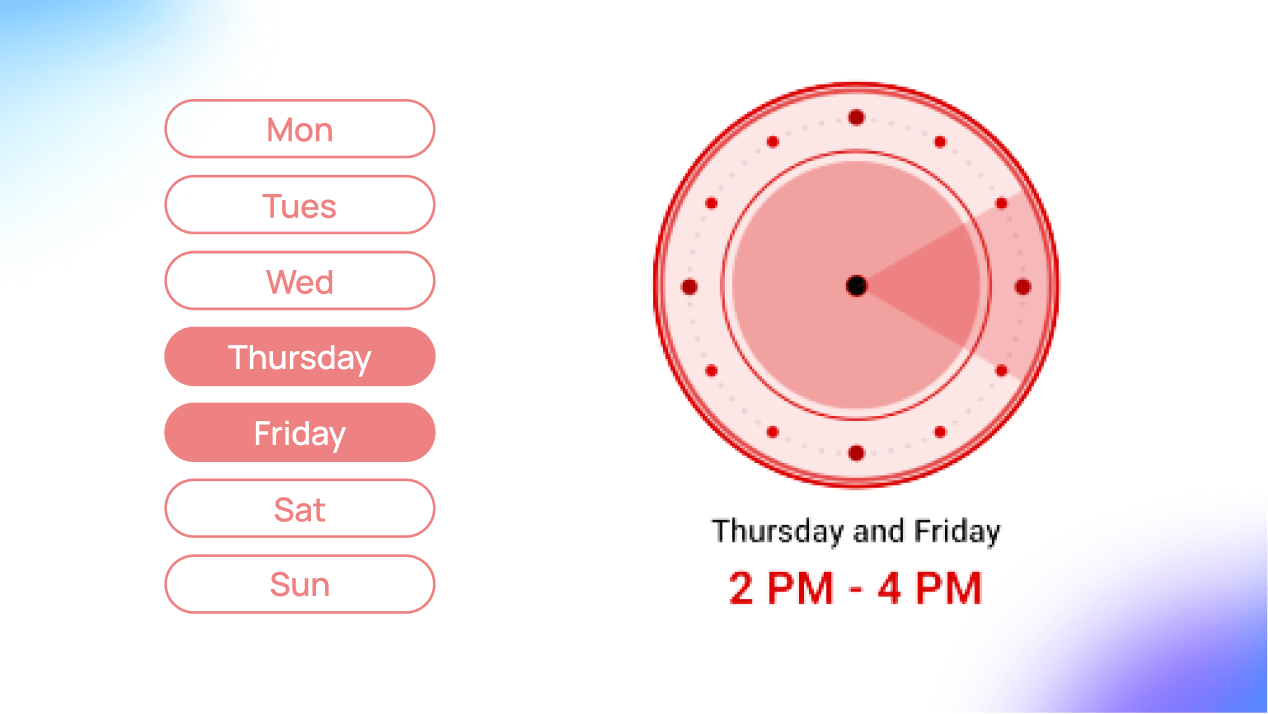
Best Time to Post on YouTube: Find Your Own Schedule
Find your best YouTube posting time with audience activity, a Mysocial planning prompt and a seven-day preparation plan. No universal hour needed.

Quick answers
Choose the task first. Phone verification concerns feature access; a channel badge identifies an official channel. Advanced features have separate eligibility checks. Follow the corresponding YouTube Studio route and review the current requirements for your account.
The usual badge application threshold is 100,000 subscribers, with account and profile requirements. YouTube decides eligibility and approval.
Phone verification provides access to intermediate features such as longer videos and custom thumbnails. Some features have additional requirements or restrictions. Check the features shown for your channel in YouTube Studio; advanced access is a separate process.
No. Phone verification concerns feature access; the visible badge identifies the official channel. Follow the route for your actual task.
After phone verification, check Advanced features in Studio. YouTube uses sufficient channel history or, where available, ID or video verification. Follow your account eligibility options rather than assuming a fixed waiting period.
To get verified on YouTube, choose the route for your task: phone verification for features, a channel badge for official identity, or advanced access for additional tools. They are separate processes. Start with the matching official instructions below, then check the requirements and status shown in your own YouTube Studio.
| Your task | Official starting point |
|---|---|
| Access features through a phone check | Phone verification |
| Apply for the visible channel badge | Badge application |
| Check additional feature access | Advanced features |
Jump to phone steps, advanced access or badge eligibility.
Use the action that matches your goal. A phone check does not apply for a badge, and a badge does not replace feature eligibility.
Phone Verification vs. Channel Badge
Phone Verification
Check the eligible account role in Studio
Receive a code by text or voice call
Intermediate access: check available features
No visible badge on your channel
Channel Verification (Badge)
An application and review process
Identifies the official channel
Visible checkmark next to your channel name
Does not unlock extra features
Check the task, then the account. Use the linked official instructions and the options your Studio shows. The advanced-access route is separate from both cards above.
For phone verification, open your channel’s features panel in Studio and follow its code prompts. The official phone-verification guide explains account roles and restrictions; the panel tells you what is available for your channel.
Step 01
Open YouTube Studio → Settings → Channel. Look for Features or Feature eligibility and select the phone-verification option.
Step 02
For a Brand Account, the owner or managers can phone-verify; for other channels, use the channel owner. Follow the options Studio offers.
Step 03
Choose the available text or voice-call method, receive the code and submit it. If delivery fails, use the official troubleshooting instructions.
Step 04
Return to Studio to see your feature access. Phone verification does not complete a badge application or guarantee every feature is available.
After the phone step, check Advanced features in Studio. YouTube uses sufficient channel history or, where offered, ID/video verification by the primary channel owner. Availability depends on the account; there is no fixed two-month automatic-upgrade promise. Follow the official advanced-access instructions, then check the resulting status.
Plan around the feature you can actually use. For example, check comment-pinning access before promising that placement in a campaign brief. If the option is restricted, resolve the restriction through YouTube’s process rather than treating a badge or a past check as a substitute.
Use this as a feature checklist, not a promise that every option activates immediately. Additional rules can apply to a feature, device or channel. Check YouTube’s feature-access guidance alongside your Studio status.
Intermediate and Advanced Feature Checks
Videos over 15 minutes
An option to check when your planned video is longer.
Intermediate
Custom thumbnails
Check access before preparing a custom upload image.
Intermediate
Live streaming
Check separate live-streaming and device requirements.
Intermediate
External links in descriptions
Check access and the rules for the links you plan to add.
Advanced
Pin comments & higher upload limits
Check the limits and options currently shown for your channel.
Advanced
Other feature restrictions
Review the exact requirements for the option listed in Studio.
Check in Studio
Check the current badge requirements and application guide.
Before applying
An owner or manager can use YouTube Studio → Settings → Channel → Verified badge → Apply. YouTube reviews authenticity and completeness. If recently eligible, allow for its systems to update. Below the usual threshold, YouTube may proactively verify well-known channels; external recognition is not a universal application requirement.
Keep a note of which channel you used, the date checked and the application status. This makes it easier to distinguish a pending application from a feature-access problem on another account.
What it does not grant
Extra features — check feature eligibility separately
Creator Awards or endorsement — a badge represents neither
Growth or sponsorship results — assess those with their own evidence
What a badge indicates
Official identity — distinguishes the channel from similar names
Do not infer search priority, audience trust or commercial success from a badge. Those are separate claims that need their own evidence.
Your channel review is a separate job from verification. If you want to organize available context from your own connected channel, connect YouTube to ChatGPT and ask for the stored metrics, observation dates and missing-data notes. Review the sources before interpreting a change; stored snapshots are not a complete upload history or a promise of future growth.
When preparing a collaboration, a media kit can present your actual available figures and relevant work. Check its content before sharing. For a separate content-planning job, see how to grow on YouTube; for sponsor preparation, use the YouTube sponsors guide. Neither job requires this guide to promise a badge or a deal.
Explore more YouTube growth strategies in the Social Media Growth & Algorithms hub.
Your social memory, connected
Bring available channel metrics and your creator context to your AI assistant. Check the sources and missing information before planning your next video or sharing your media kit.
Requires a connected channel and an AI account with connector access. Derived analysis depends on your plan; verification is handled by YouTube.
Social Media Growth & Algorithms
Related Posts
Find your best YouTube posting time with audience activity, a Mysocial planning prompt and a seven-day preparation plan. No universal hour needed.
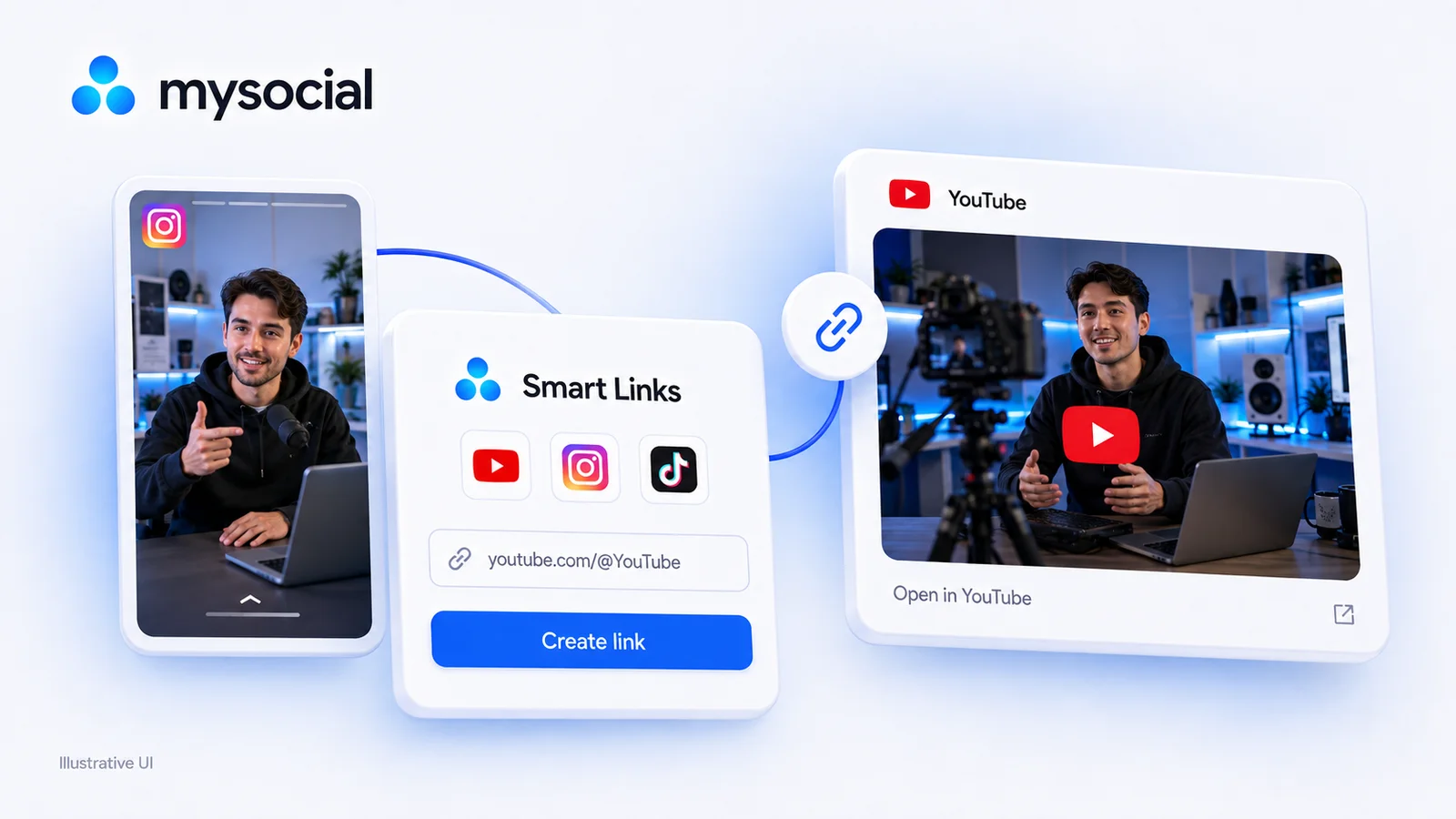
Try a free LinkTwin alternative with a working YouTube link generator. Compare click limits, app-opening behavior and what to check before switching.
Find small influencers for your brand. Compare audience fit, recent reach, engagement quality and campaign costs before choosing nano or micro-creators.