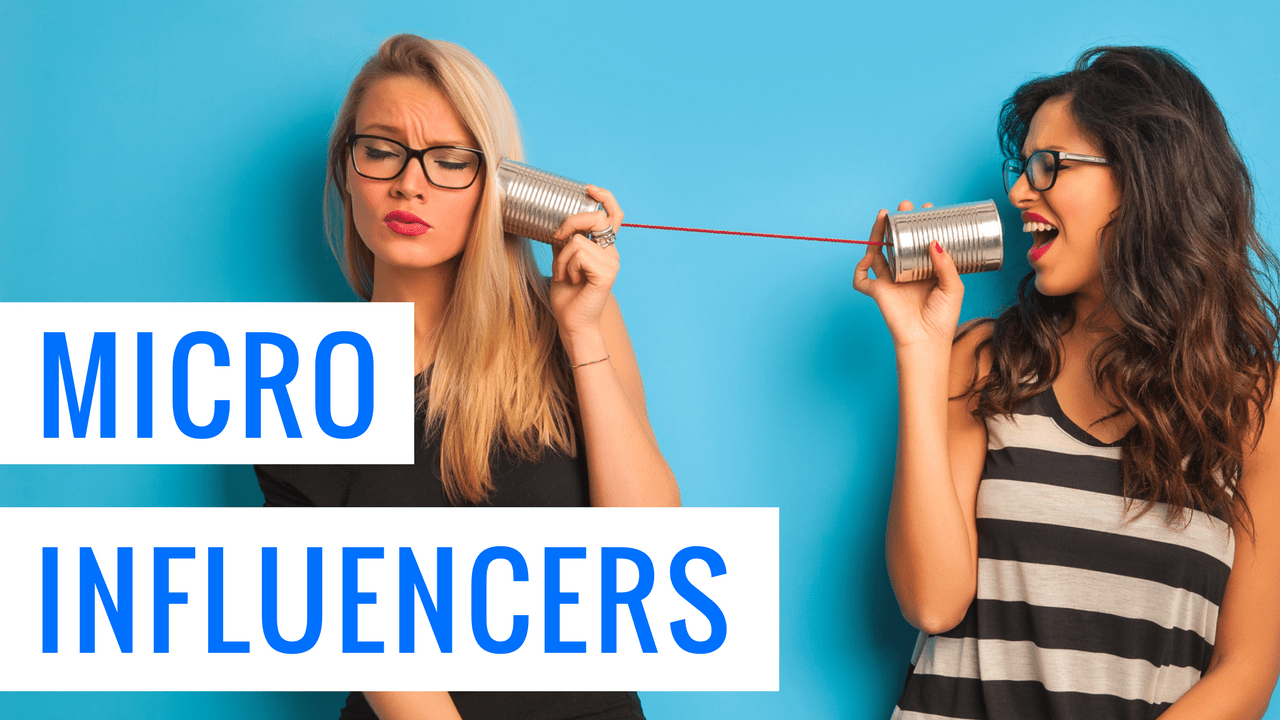
Small Influencers: How Brands Find and Choose Creators
Find small influencers for your brand. Compare audience fit, recent reach, engagement quality and campaign costs before choosing nano or micro-creators.

Having trouble linking your Instagram to Mysocial? This guide walks you through the most common fixes.
To link your Instagram to Mysocial, you need to:
Follow the steps below in order. Each section builds on the previous one.
This is the single most common reason the connection fails, and it is easy to miss — a Facebook account is not a Facebook Page. A Page is the separate public profile you’d create for a brand, a business or your creator work. Instagram links to a Page, not to your personal account, so if you don’t administer one there is nothing for Instagram to connect to and every attempt will fail no matter how many times you retry.
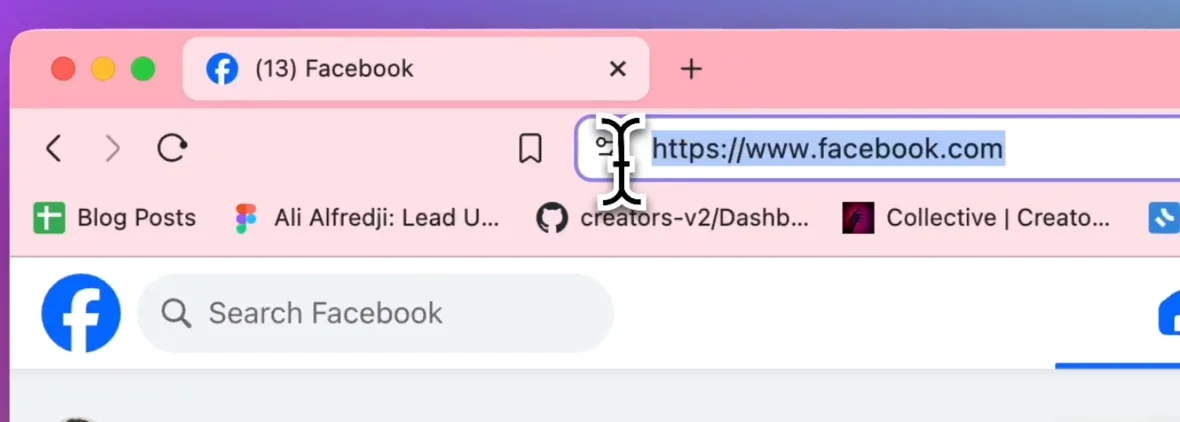
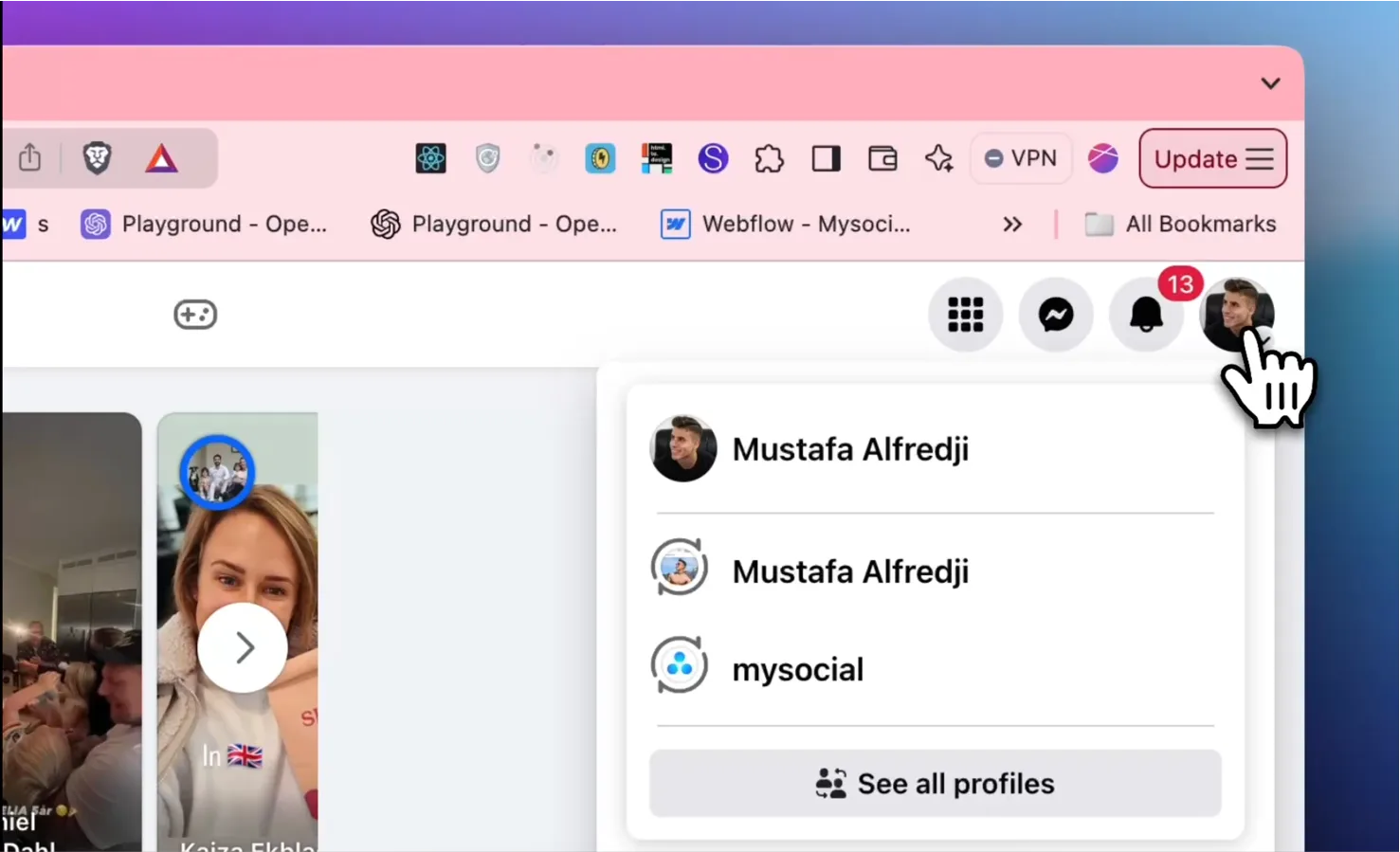
How to check: open www.facebook.com on a desktop computer and click your profile picture in the top right. If you have Pages, they’re listed there. If the list is empty, you don’t have one yet.
How to create one: go to facebook.com/pages/create, give the Page a name and a category, and publish it. It takes a minute and it can be about you — your creator name is a perfectly good Page name. You don’t have to post anything on it.
Once the Page exists, carry on with Step 1 below.
Don’t want a Facebook Page? You don’t need one for the rest of Mysocial. TikTok, YouTube, LinkedIn and Substack all connect straight from the account you already sign into — no Page, no business conversion, nothing to set up. Connect one of those instead and come back to Instagram whenever you feel like it.
Watch the video tutorial, then follow the written steps below.
Before you start: Make sure your Instagram account is set to a Professional account (Business or Creator). Personal accounts cannot be linked to a Facebook page.
Click on your profile picture in the top right corner. You’ll see a list of your Facebook pages.
Select the Facebook page you want to link to your Instagram account.
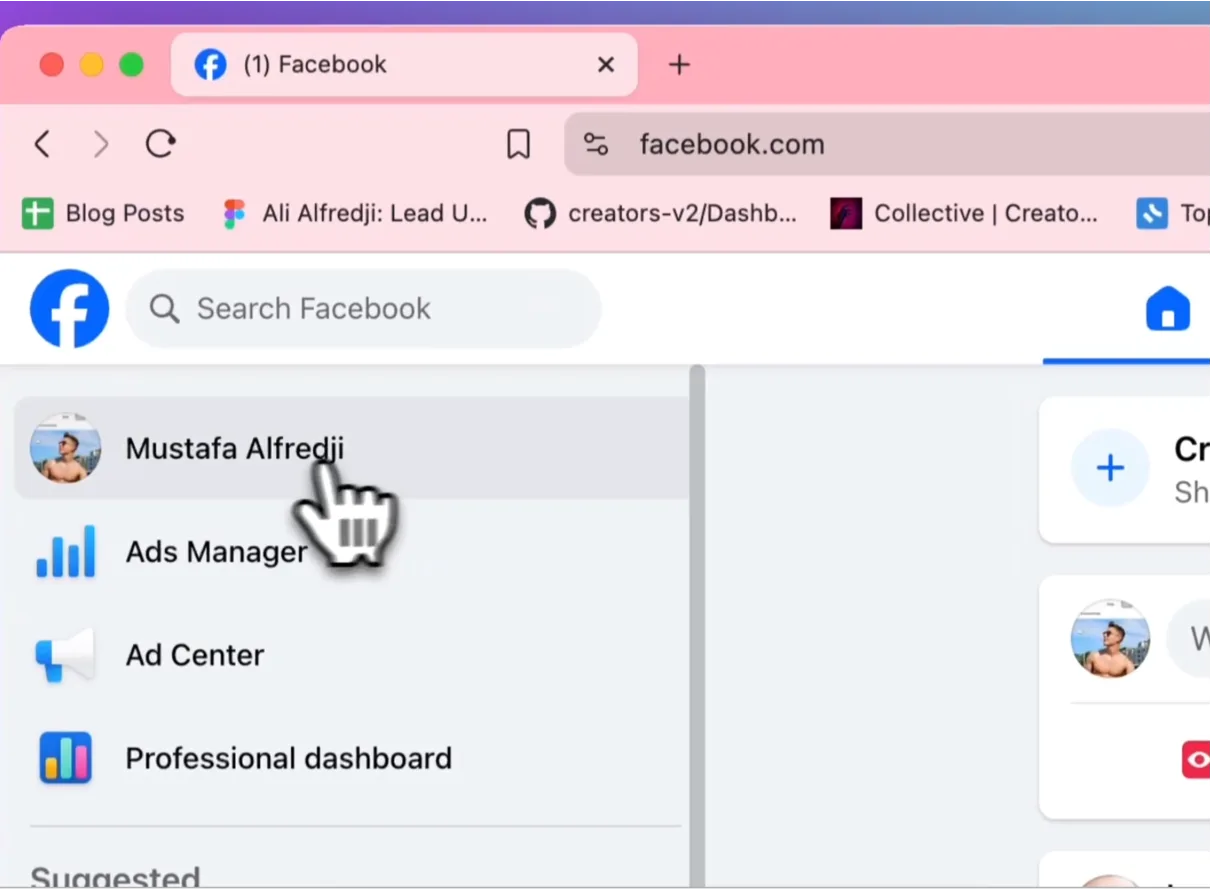
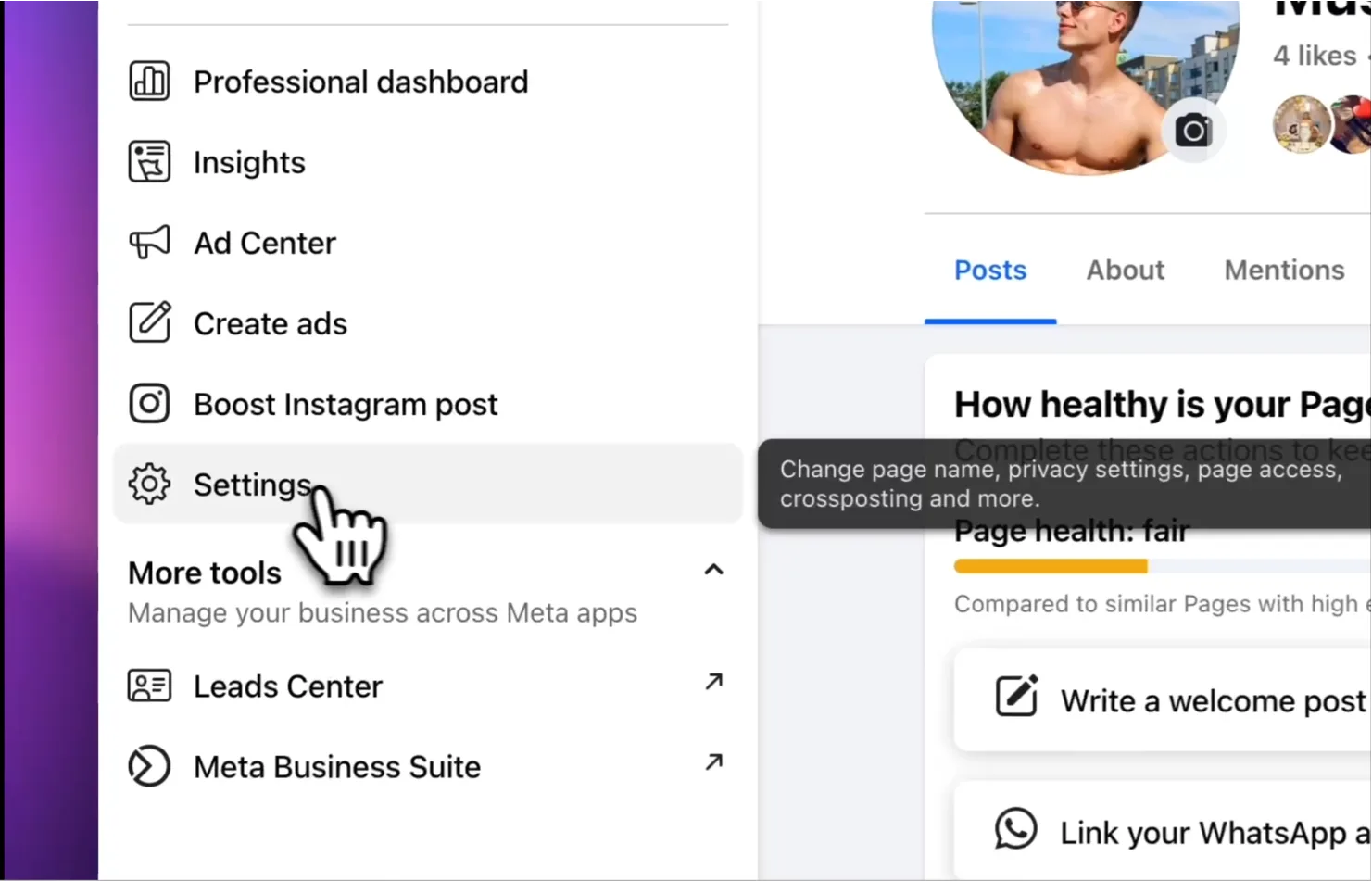
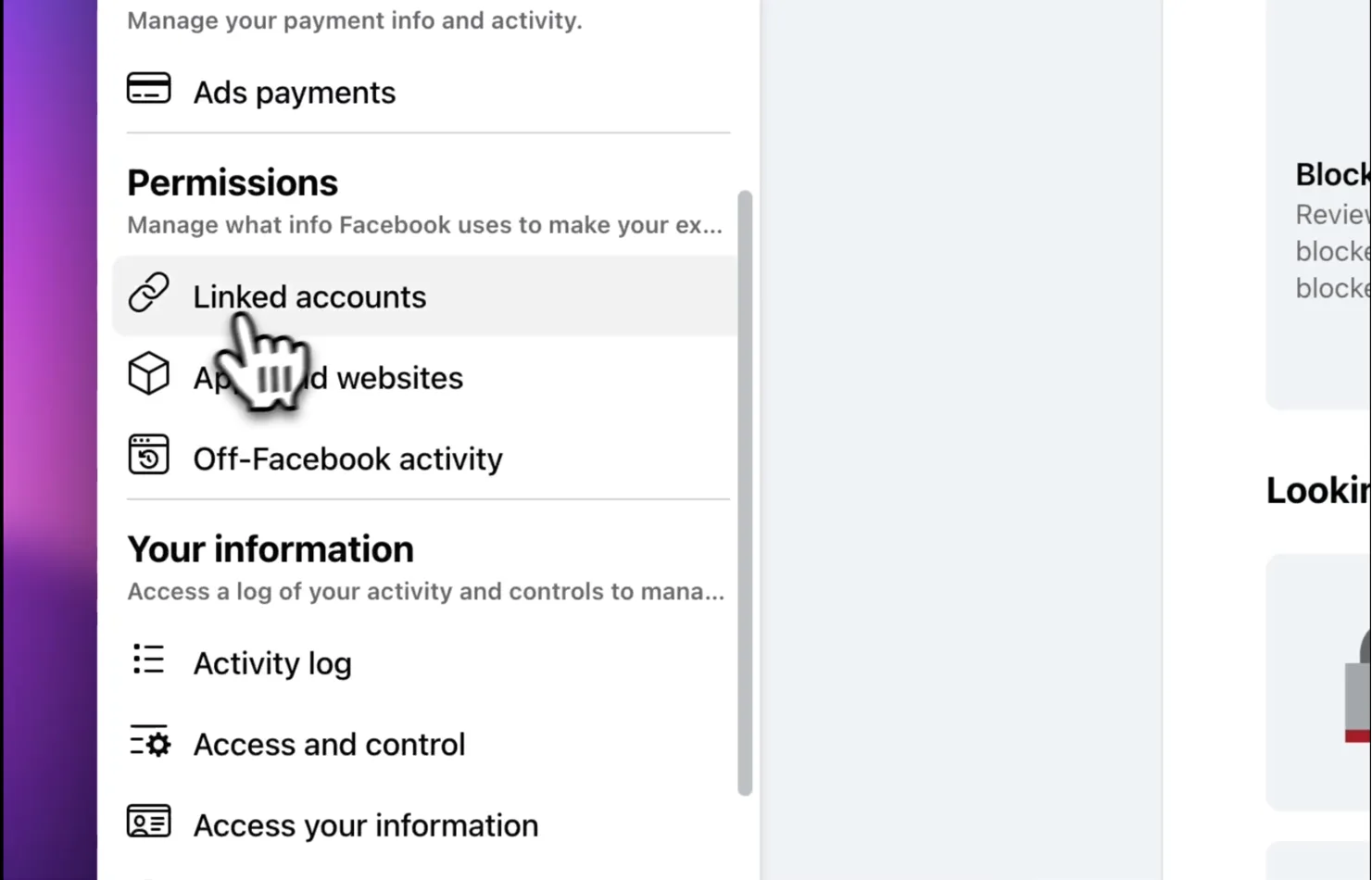
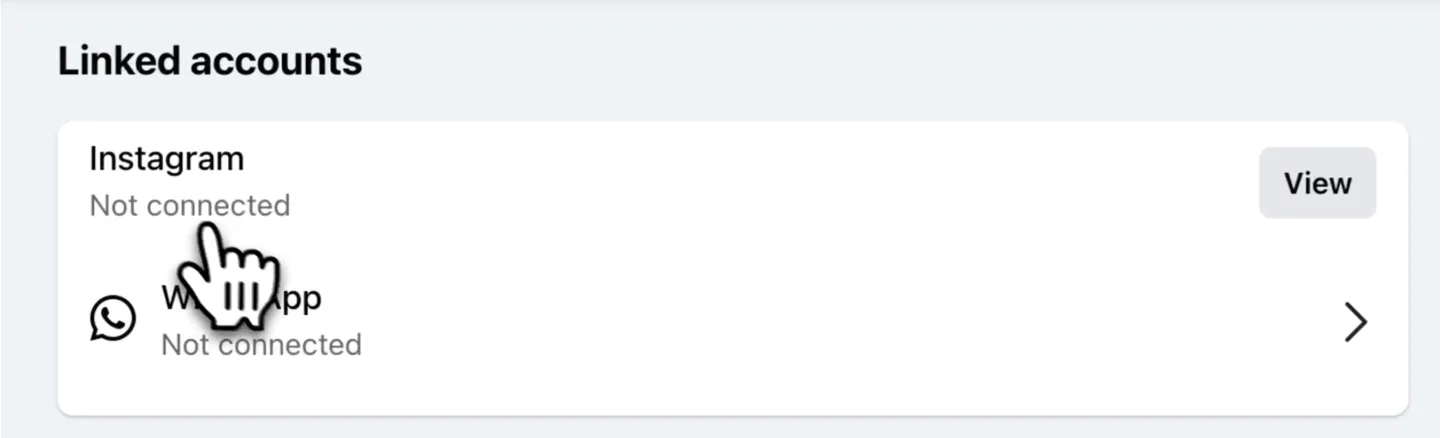
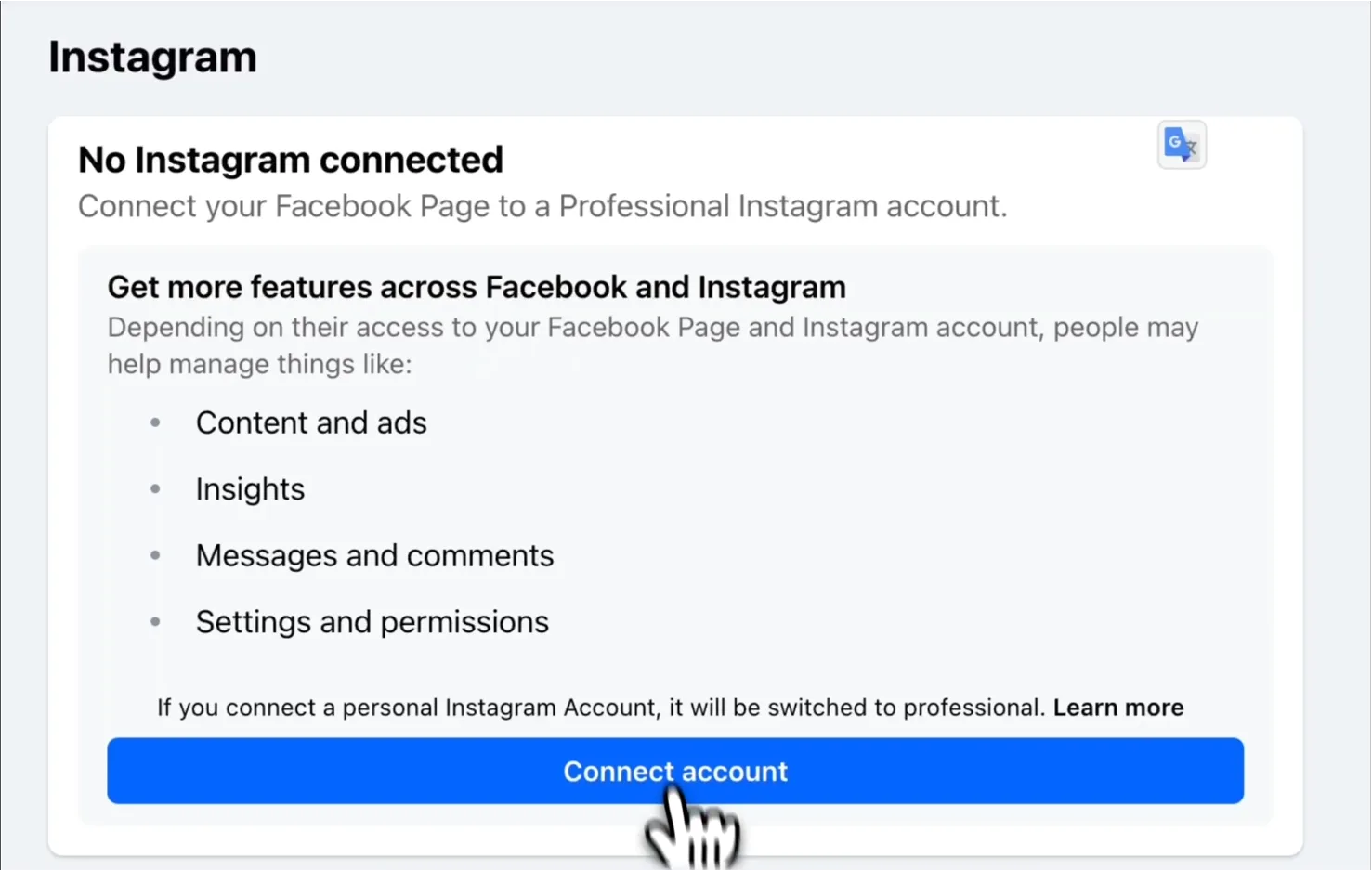
Don’t head back to Mysocial yet — this is the step that decides whether everything above worked, and it takes five seconds.
Stay in Settings → Linked Accounts → Instagram and confirm all three:
If any of the three is wrong, disconnect and redo Step 1 before going any further. Every later step assumes this one is true, and a half-finished link is what sends people round the loop three or four times.
If you’ve connected your Instagram to a Facebook page but Mysocial still can’t access it, you may not have granted the correct permissions.
Watch this short video to make sure Mysocial has the proper access:
If Steps 1 and 2 didn’t solve the issue, Facebook may not have properly synced your newly linked account. Removing and re-adding the Mysocial integration forces a fresh connection.
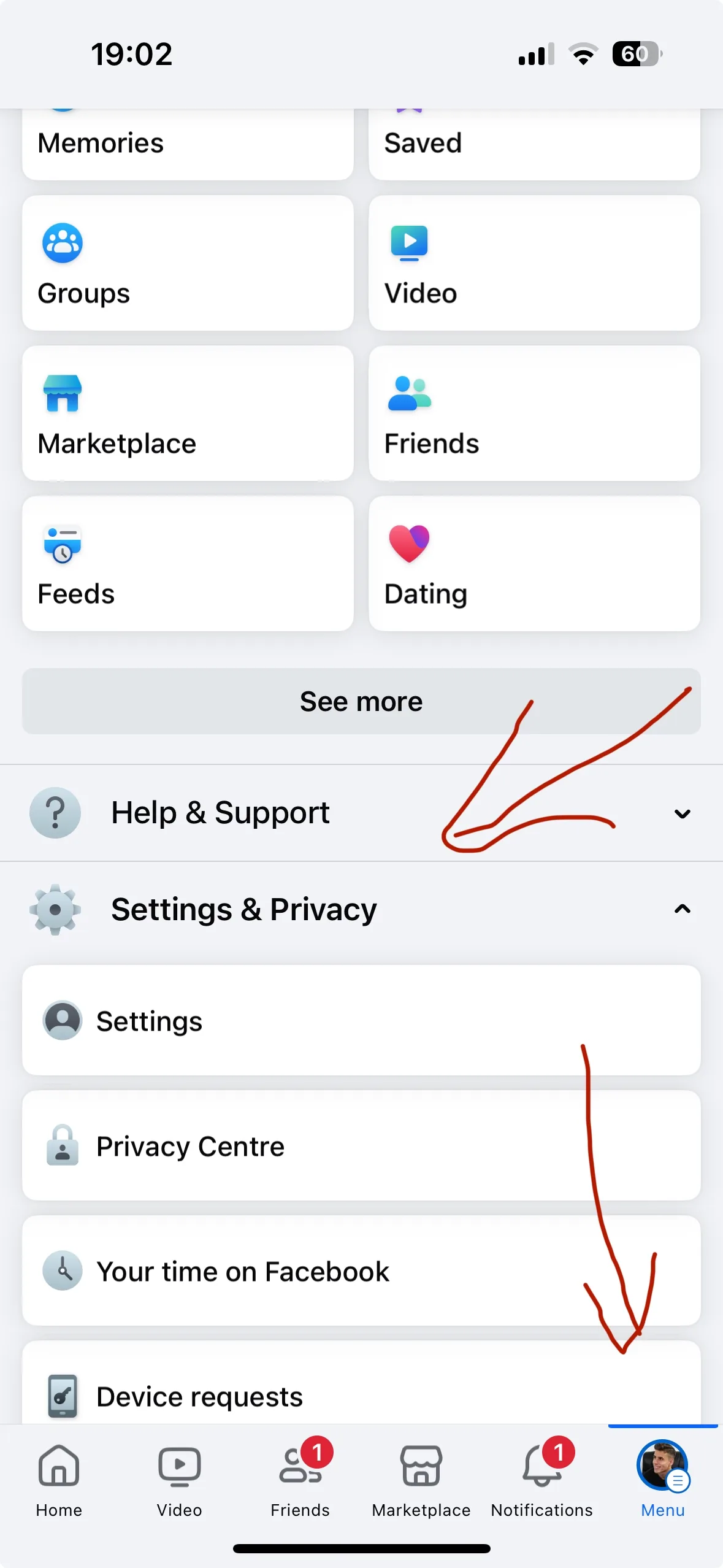
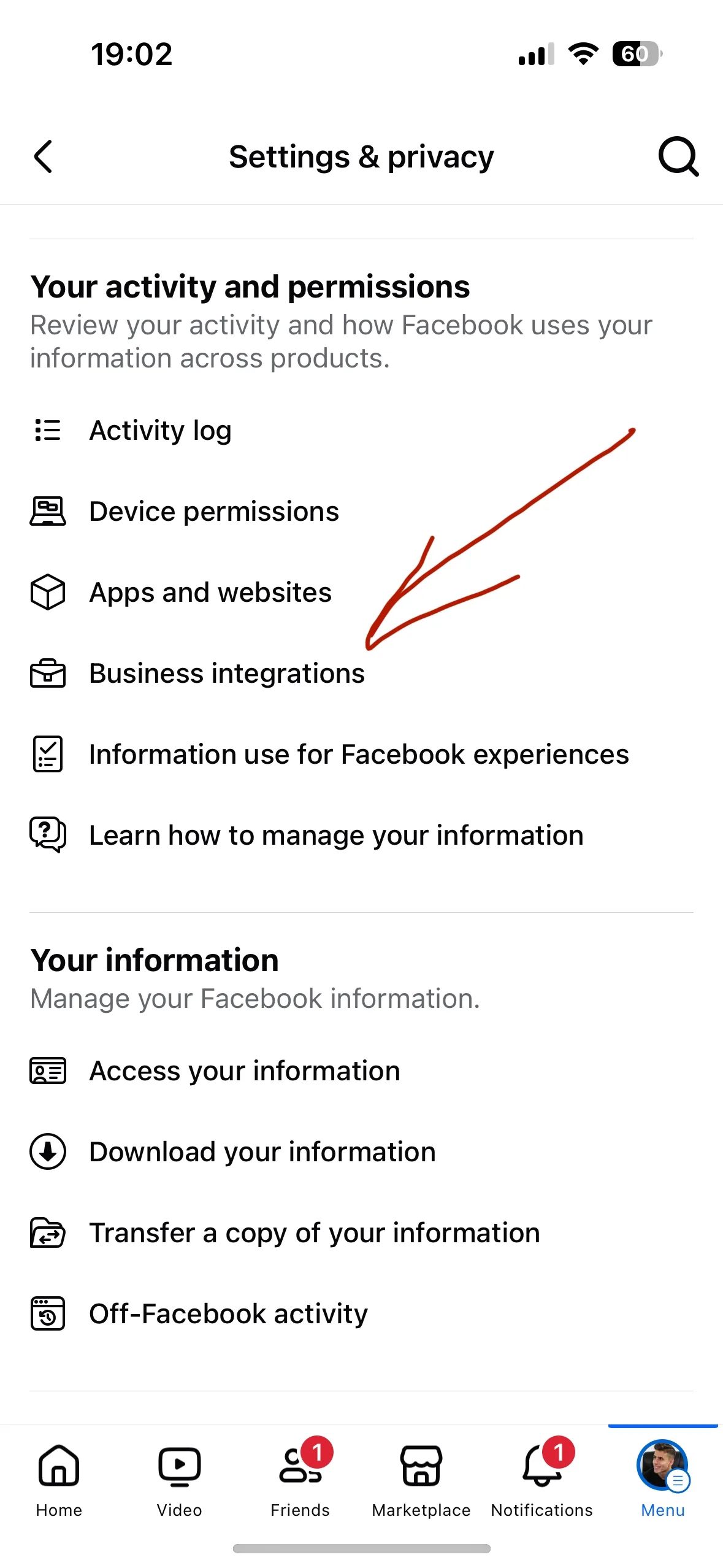
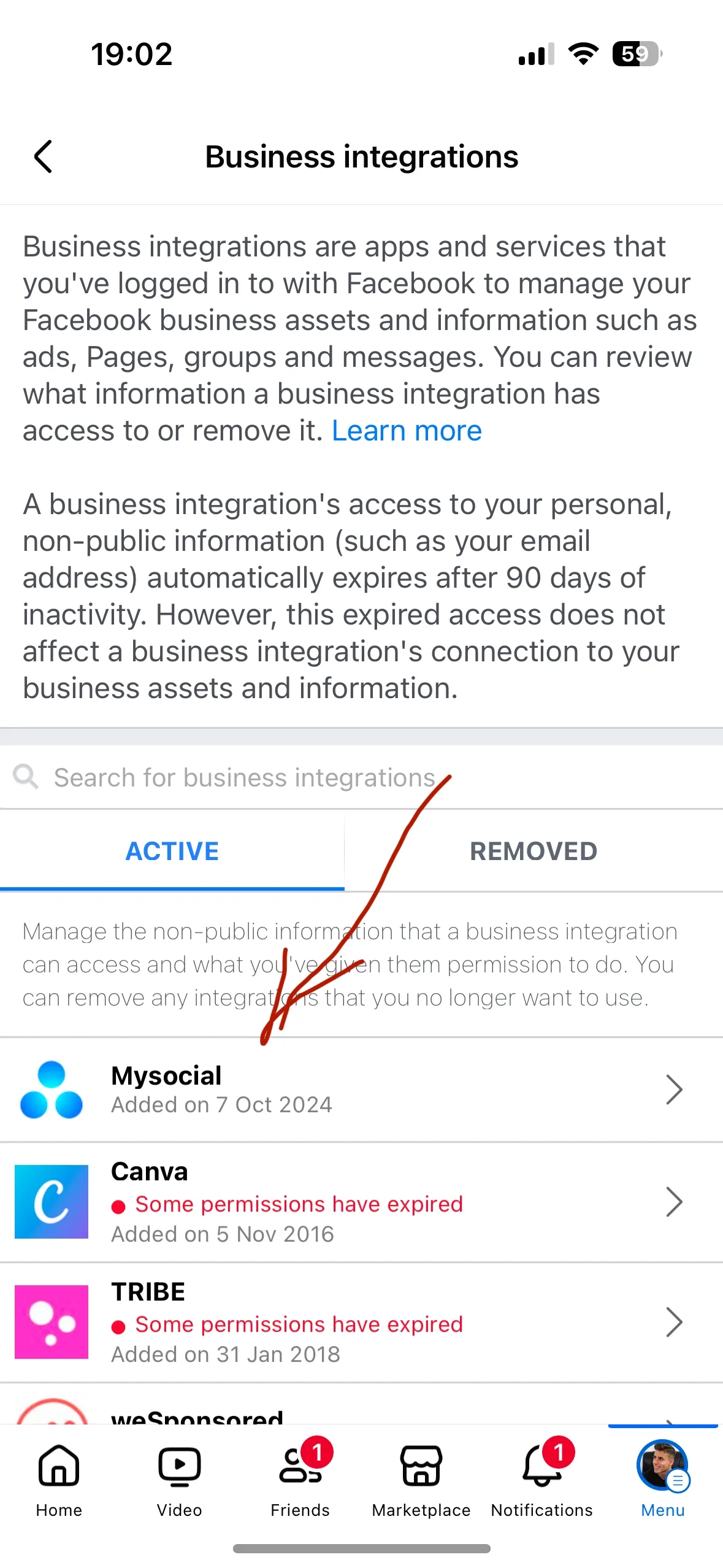
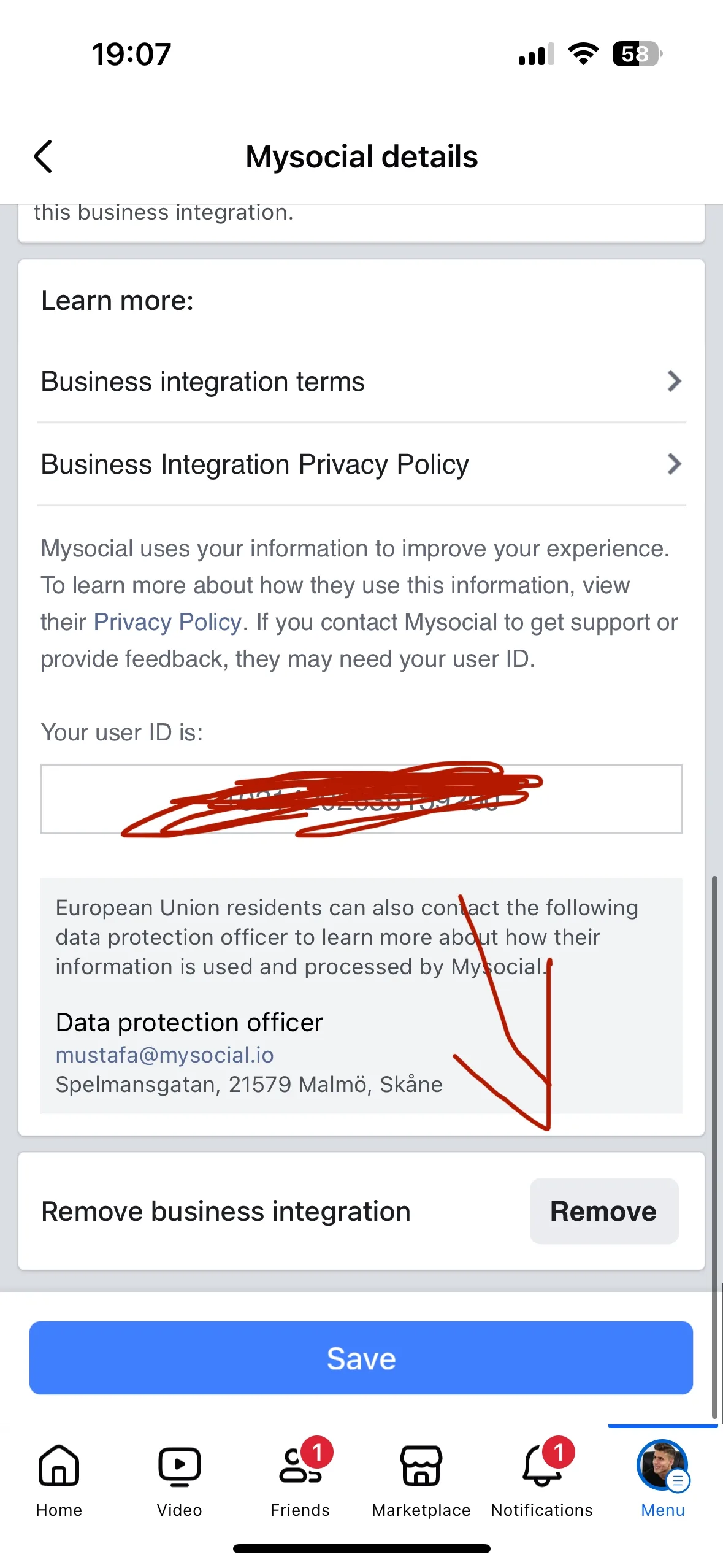
If none of the steps above resolved the issue, contact our support team at support@mysocial.io and we’ll help you get connected.
Support & Troubleshooting
Related Posts
Find small influencers for your brand. Compare audience fit, recent reach, engagement quality and campaign costs before choosing nano or micro-creators.
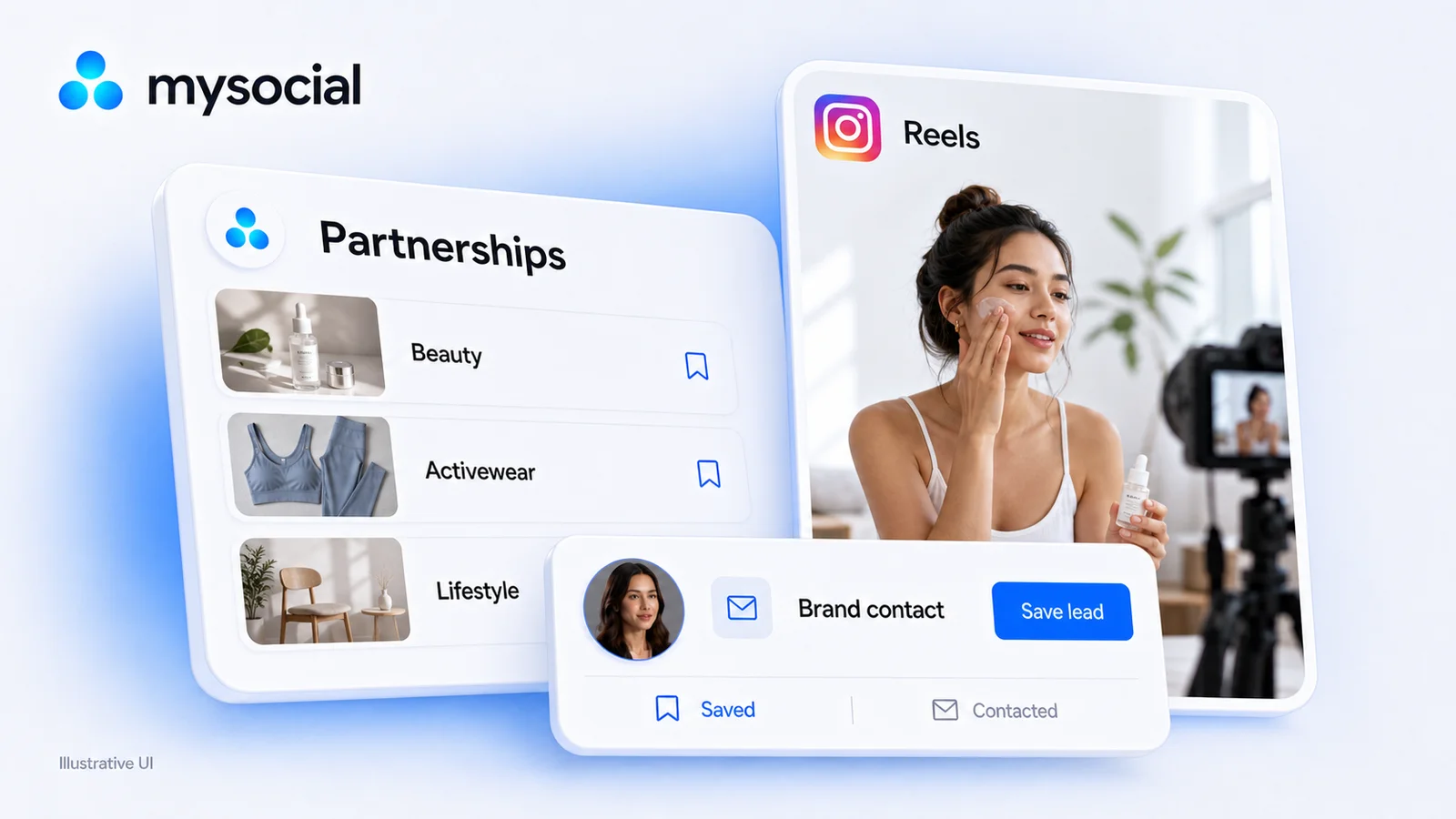
Compare Instagram sponsorship platforms for Reels, Stories and brand deals. See creator fees, campaign types and the best fit for your next partnership.
14 social media MCP servers, four different jobs. Postiz wins publishing, Supermetrics wins reporting — and Mysocial wins the one nobody else does.